
Start here
- · Four cards below mirror TinyHumans Getting Started: install, sign in to the product, connect mail/chat and wait one sync lap, then try a prompt. Jump into linked guides anytime for screenshots and troubleshooting.
Step 1
Download and install
Grab the TinyHumans desktop build, run the installer, then launch OpenHuman once—same roadmap as Getting Started §1 ↗.
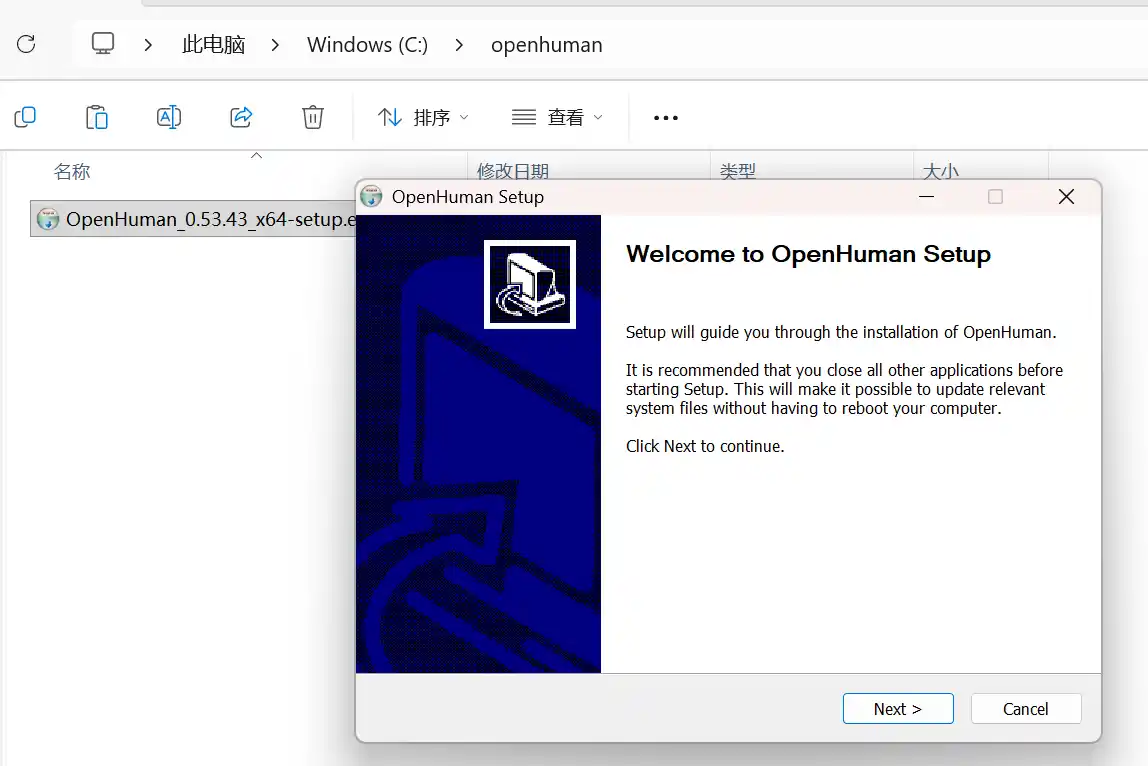
Stuck during install · Windows · macOS · Linux · System requirements
Step 2
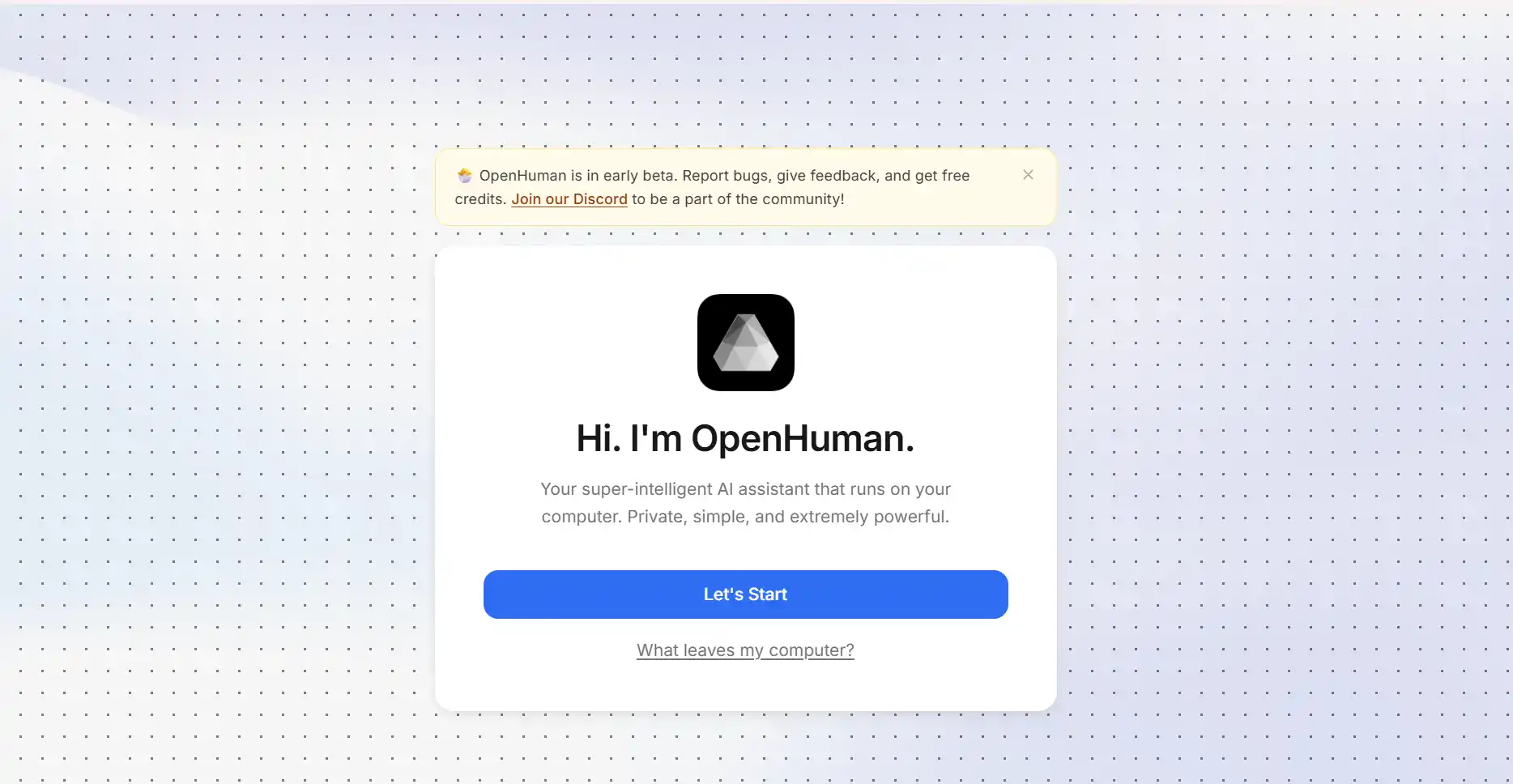
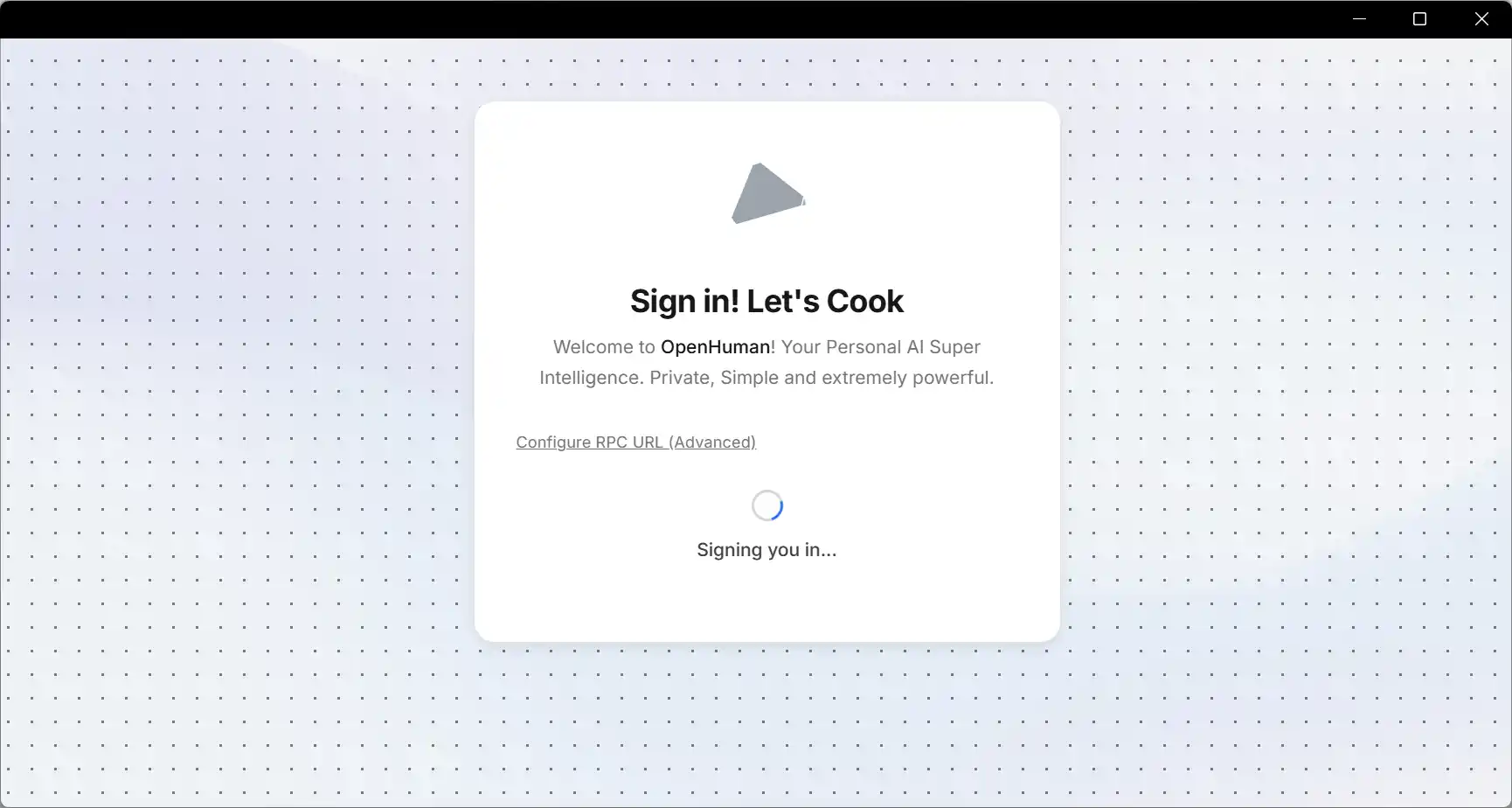
Sign in (product account)
After the splash copy, attach your OpenHuman identity. Friendly onboarding text is normal; SmartScreen/Gatekeeper and OS permission banners are handled on the checklist below.
Signing in here is not the Gmail/Slack browser consent—that happens when you deliberately add connectors in step 3.
Step 3
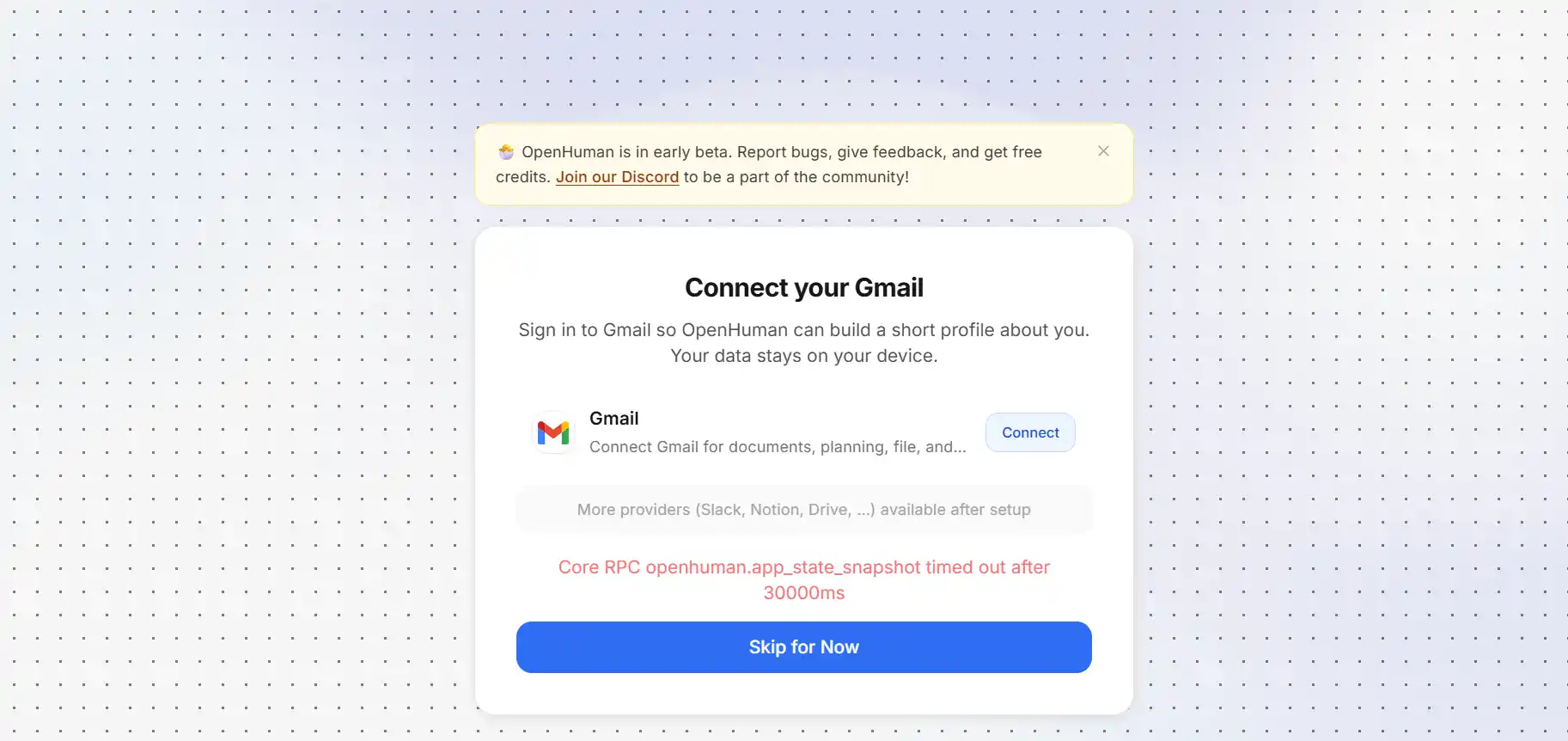
Connect sources & wait (~20 min)
Pick Gmail, Slack, or another connector—the vendor OAuth window pops separately. Schedulers ingest roughly every ~20 minutes; the first pass is when answers suddenly feel grounded.
Step 4
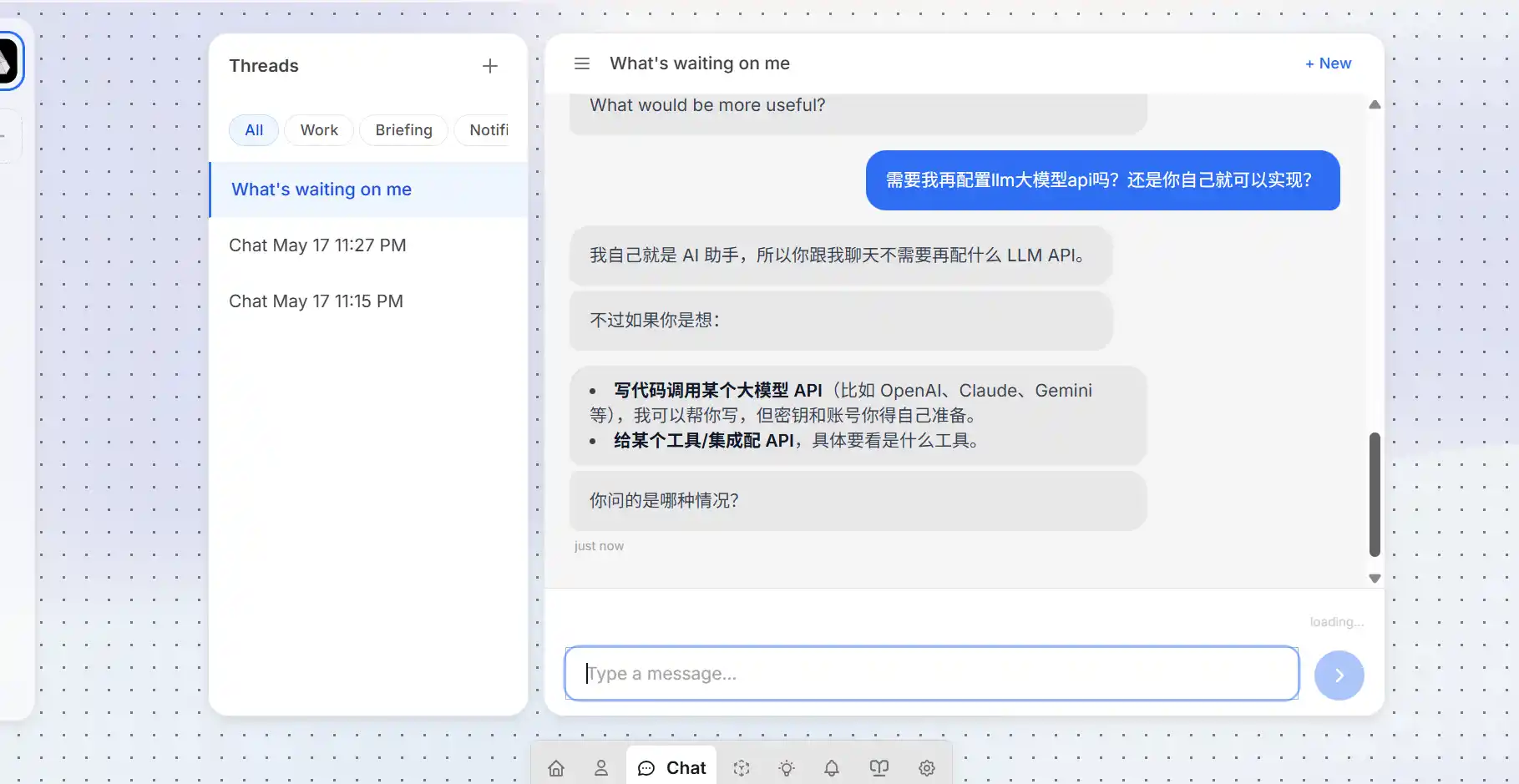
Run a first prompt
Once a connector crawl finishes (or after you patiently wait one lap), switch to conversational mode and ask something that relies on synced mail or chat—“what slid through my inbox this morning?” style questions work better than existential trivia until data shows up.
Starter prompts & tone tuning →
Optional later: Memory tree & Obsidian vault mirrors Getting Started extras if you organize notes externally.
Advanced: README & terminal install
GitHub README ↗ · Read raw before running: install.sh · install.ps1
macOS / Linux x64
# For macOS or Linux x64
curl -fsSL https://raw.githubusercontent.com/tinyhumansai/openhuman/main/scripts/install.sh | bash
Windows PowerShell
# For Windows
irm https://raw.githubusercontent.com/tinyhumansai/openhuman/main/scripts/install.ps1 | iex